


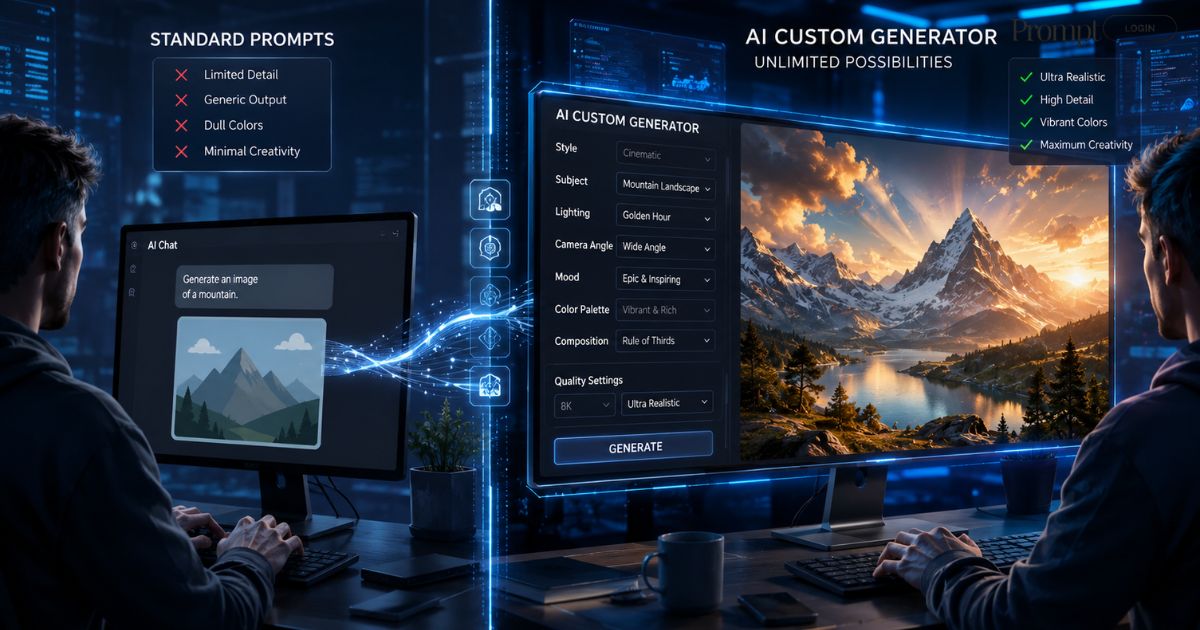
I used to spend hours trying to get AI art tools to make exactly what I saw in my head. I’d type a simple idea, and the result looked nothing like my vision. That changed when I started using a custom DALL-E 3 prompt generator. If you want high-quality images without guessing the right words, building your own helper is the easiest way to get them.
Why DALL-E 3 Needs Specific Prompts
DALL-E 3 is smart. It’s built directly into ChatGPT, which means it can understand conversational language much better than older tools. When you type a short prompt, ChatGPT actually rewrites it behind the scenes to add more detail. You can read more about how this works on OpenAI’s DALL-E 3 page.
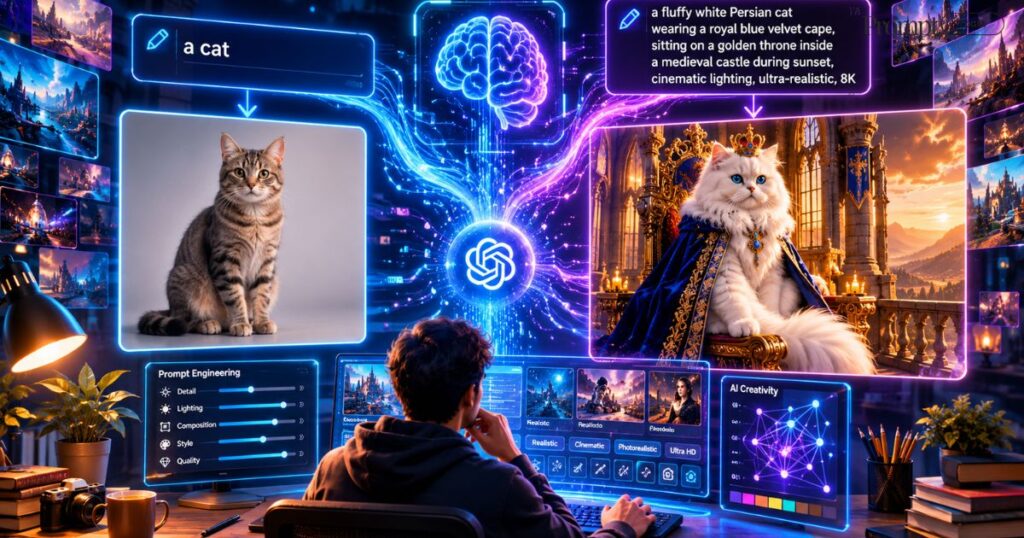
But sometimes, the automatic rewrite doesn’t capture your style. It might add details you don’t want, or miss the mood you wanted to create. By using a dedicated system to build your prompts, you take back control. You decide the lighting, the camera angles, the art style, and the color palette before the image generator even starts its work.
How to Build Your Own DALL-E 3 Prompt Generator
You don’t need to write complex code to make this work. You can turn ChatGPT itself into a generator by giving it a specific set of instructions. This is often called a system prompt.
Here’s a simple template you can copy and paste into ChatGPT. This template tells the AI how to behave and what details to ask you for.
Copy this text:
You are a professional prompt engineer for DALL-E 3. Your job is to take a simple image idea from the user and turn it into a detailed, descriptive prompt. For every idea I give you, please provide: 1. A descriptive scene prompt (around 3 to 4 sentences). 2. The art style (such as oil painting, 3D render, vintage photo, or vector art). 3. The lighting and color scheme (such as warm golden hour light, moody dark tones, or bright neon colors). 4. The camera angle or perspective (such as close-up, wide-angle, or birds-eye view). Do not generate the image yet. Just write out the final prompt text in a code block so I can copy it easily.
How the Generator Works in Practice
Here’s how this works in practice. I gave my new generator a very simple idea: a cozy cabin in the woods.
Without the generator, DALL-E 3 might just make a generic log cabin. But with the custom instructions, the tool gave me this detailed prompt:
Example Prompt: An old wooden cabin sits deep inside a pine forest during autumn. Soft yellow light glows from the small windows. A thin trail of smoke curls slowly out of the stone chimney. The ground is covered in fallen orange and yellow leaves, with a light fog hanging between the trees. The style is a realistic photograph with warm, soft lighting, captured from a low angle to make the cabin look welcoming and sturdy.
This version gives the AI engine a clear picture of what to draw. It specifies the season, the lighting, the texture of the leaves, and the camera angle. The resulting image will be much closer to what you actually want.
Adding Style Modifiers
To get the most out of your tool, you should teach it about different artistic styles. DALL-E 3 is excellent at mimicking specific mediums. If you don’t specify a style, it defaults to a clean, digital look that can sometimes feel sterile.
Here are some styles you can ask your generator to use:
- Claymation: This style makes characters look like they were sculpted from modeling clay, similar to classic stop-motion films.
- Risograph Print: This style uses limited color layers, small alignment errors, and grainy textures for a retro, handmade feel.
- 1970s Dark Fantasy: Think of old book covers, grainy textures, heavy shadows, and dramatic, mysterious subjects.
- Isometric Vector: Perfect for clean, modern designs, showing objects from a fixed three-quarter view.
You can read about the history of these various styles on Wikipedia’s page on visual art styles to find more inspiration for your prompts.
If you want to learn more about creating consistent characters, you can read our guide on how to maintain character consistency in AI art.
Why Custom Generators Beat Standard Prompts
You might wonder why you should bother with a generator instead of just writing long prompts yourself. The answer is consistency and speed.
When you write prompts from scratch, you often forget to mention important elements. You might describe the subject perfectly but forget to mention the background. Or you might forget to specify the lighting, leaving the AI to make a random choice.
Instead of guessing what to write, you get consistent, cinematic, and professional-quality AI images every time.
A generator acts as a checklist. It forces ChatGPT to think about every aspect of the image before creating it. This saves you from wasting your daily generation limits on images that are almost right but have the wrong lighting or perspective.
It also helps you explore new ideas. Sometimes, the generator will suggest a color scheme or a camera angle that you wouldn’t have thought of yourself. This can lead to surprising and creative results that go beyond your original concept.
For more tips on getting the most out of ChatGPT, check out our article on writing better prompts for text generation.
Making Your Generator Even Better
Once you’re comfortable with the basic setup, you can customize your generator further. You can tell it to avoid certain clichés. For example, AI art often uses too many glowing lights or overly shiny surfaces. You can instruct your generator to prefer matte textures and natural lighting.
You can also create different versions of your generator for different projects. You might have one specifically for creating website icons, another for children’s book illustrations, and a third for realistic product photos. Each one will have its own system prompt tailored to that specific look.
To get started, open ChatGPT and paste the system prompt template from this article. Try giving it three completely different ideas, like an astronaut, a quiet library, and a futuristic car. See how it expands those simple words into rich, detailed descriptions. You’ll quickly see how much better your images look when you use a DALL-E 3 prompt generator to guide your creative process.

