


What Is Notefolio? The Smart Productivity Tool Explained
On my iPhone, I have a graveyard of apps—Notion with half-finished databases, Apple Notes stuffed with random grocery lists next to meeting minutes, and Reminders with tasks I haven’t touched since 2022. Every few months, I’d stumble across some new note-taking app promising to “change the way I think,” spend a weekend migrating everything over, and then quietly abandon it when the novelty wore off.
Then someone on a productivity forum mentioned Notefolio in passing. Not with a lot of fanfare—just a casual “I’ve been using it, and it stays out of my way.” That description, weirdly, is what made me download it.
So, What Actually Is Notefolio?
Notefolio is a note-taking and lightweight task management app built exclusively for the Apple ecosystem. It’s developed by Funn Media and lives on iPhone, iPad, Mac, and — this surprised me — Apple Watch. The core pitch is simple: private, clean, and organized notes with zero account creation, zero data collection on their servers, and no subscription drama just to use the basics. The app stores everything on your personal iCloud account. That’s it. No Notefolio servers are involved.

Your notes go straight into your iCloud, encrypted end-to-end, accessible only by you. For a lot of people — especially those who’ve read the occasional horror story about some note-taking company going under or selling user data — that’s actually a pretty compelling argument.
The First Thing I Noticed
Opening Notefolio for the first time, the interface was almost jarring in its simplicity. No onboarding wizard. No tutorial pop-ups. No “setup your workspace” prompts. Just a clean screen with a folder view and a button to create a new note.
My first instinct was, “Okay, but what can it actually do?” Because simple apps often turn out to be just… limited.
But Notefolio has more going on beneath the surface than it first appears. You get unlimited folder nesting—meaning you can create folders inside folders inside folders to whatever depth of organization makes sense to you. I use this personally for work categories (writing → articles → drafts → ideas), and it works without getting confusing.
You can also tag notes as favorites for quick access, apply different color themes, switch to dark mode, and do a global search across all your notes. Nothing revolutionary, but everything you’d actually want working together smoothly.
The security features are legitimately useful.
Here’s where Notefolio does something that a lot of casual note apps skip: it takes security seriously.
You can lock individual notes with a passcode. You can lock entire folders. You can lock the whole app with Face ID or Touch ID. These aren’t just checkbox features either—they feel implemented thoughtfully. If you’re someone who jots down passwords, personal journal entries, or sensitive work materials, you can protect exactly those specific files without locking yourself out of everyday notes.
I tested this by setting up a locked folder for some financial notes. Tapping in triggers a Face ID prompt, which opens instantly on a recent iPhone. It’s the kind of friction that keeps things private without actually slowing you down.
One honest caveat: if you’re coming from something like 1Password or Obsidian’s encrypted vault, this isn’t going to replace those. The security here is solid for personal note protection — not enterprise-level document security.
The To-Do Integration (And Where It Fits)
Notefolio also handles to-do lists, which sounds like a small thing but actually changes how I use the app day-to-day. Instead of switching between a notes app and a task manager, I can keep a running to-do list inside the same interface.
It’s lightweight — don’t expect Todoist features here. No recurring tasks, no priority labels, no project boards. But for a quick “things to get done today” list sitting alongside your meeting notes from that morning, it works perfectly.
I made the mistake early on of trying to use Notefolio as my primary task manager. That was a mistake. It’s not built for complex project management, and pushing it to do that just highlighted what it wasn’t designed for. Treat the to-do feature as a complement to your notes, not a standalone GTD system, and it will click into place.
Apple Watch Access — More Useful Than I Expected
Okay, I’ll be honest — when I first saw “Apple Watch app” listed as a feature, I rolled my eyes a little. Note-taking on a watch? Really? But after actually using it, I get it. The Watch app doesn’t let you write long notes (obviously), but it lets you quickly scan your favorites and your to-do list right from your wrist.
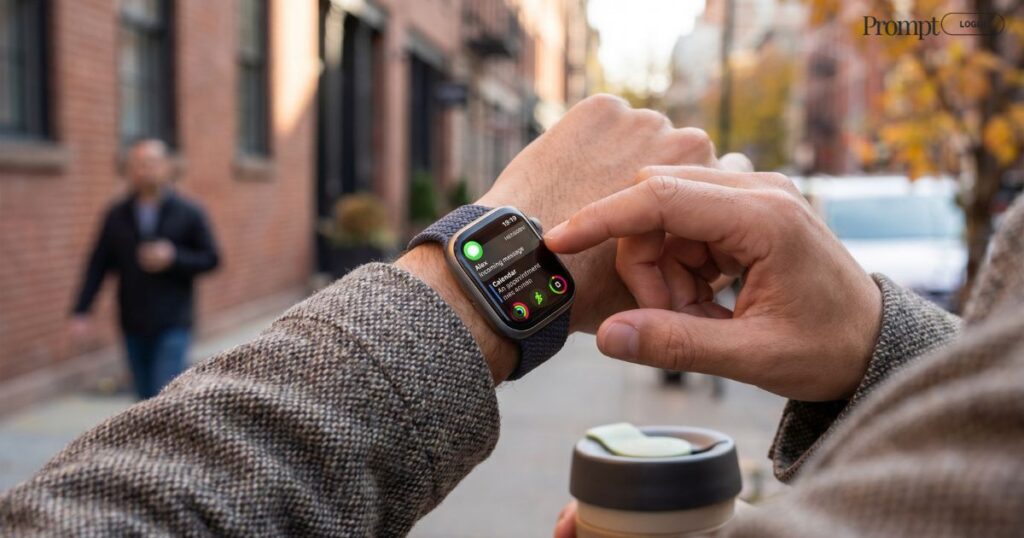
If you’ve got a grocery list or a checklist you’re actively working through, being able to glance at your watch instead of pulling out your phone is a genuinely better experience. You can also open passcode-protected notes on the watch, which keeps the privacy model consistent across devices.
Setting Up Notefolio: A Practical Walkthrough
If you want to get up and running in a way that makes the app actually useful, here’s how I’d approach it:
Step 1 — Build your folder structure first. Don’t just start dumping notes in. Spend five minutes sketching out your main categories. Work, personal, reference, projects—whatever makes sense for your life. Notefolio’s nested folders mean you can go deep, but start with the top level and add subfolders as you need them.
Step 2 — Set up a Favorites shortcut. Pin your most-used notes (running to-do list, current project notes, and reference docs you check weekly) as favorites. This creates a quick-access layer that saves you from drilling through folders every single time.
Step 3 — Enable iCloud sync and confirm it’s working. Open the app on your iPhone and your Mac, create a test note on one, and verify it appears on the other within a minute or two. If it doesn’t, check your iCloud settings — sometimes a fresh install needs you to confirm storage permissions.
Step 4—Set up a Siri shortcut. This was a game-changer for me. You can create a Siri shortcut to open Notefolio straight to a new note or a new to-do. I use “Hey Siri, new note in Notefolio” whenever something comes to mind while I’m driving. Takes about two minutes to configure in the Shortcuts app.
Step 5 — Add a home screen widget. Notefolio supports iOS widgets, so you can pin your favorites list or a to-do shortcut directly to your home screen. Small thing, but it removes one tap from your workflow every single time.
How It Compares to the Big Players
It would be weird to talk about Notefolio without acknowledging the crowded space it lives in.
Apple Notes is free, deeply integrated, and constantly improving. If you’re already deep in that ecosystem and happy with it, Notefolio isn’t going to blow your mind. The core differentiator is the more structured folder system, better per-note security options, and the cleaner focus—Apple Notes has gotten complex enough that it can feel cluttered.
Notion and Obsidian are power tools. They’re fantastic for people who want to build elaborate knowledge systems. But they have a significant learning curve, and honestly, most people don’t need a “second brain”—they need somewhere to put their notes that they’ll actually use.
Notefolio sits in an interesting middle ground: more organized and private than Apple Notes, far simpler than Notion. For someone who just needs a clean, private place to think on Apple devices, it nails the brief.
What It Doesn’t Do Well
No app review is complete without the honest part.
Notefolio is Apple-only, full stop. Android users, or anyone who works across Apple and Windows machines regularly, is out of luck. The iCloud-only sync model is both its greatest strength (privacy) and its biggest limitation (no web client, no cross-platform access).
The text editor is also genuinely basic. No markdown support, no inline images beyond photo attachments, no tables, no code blocks. If you’re a developer wanting to store code snippets, a researcher building a literature review, or a writer who thinks in Markdown, this isn’t the tool for you.
And the accessibility features have room to grow. A user on the App Store noted difficulty with the location of the “new note” button, and the response from the developer, while acknowledging it, was slow. That’s worth knowing if accessibility is a priority for you.
Learn More: How Clearscope Helped Me Finally Stop Guessing What Google Wants
Who Should Actually Use Notefolio?
After spending real time with it, here’s my honest take on who gets the most out of Notefolio:
You’re already in the Apple ecosystem (iPhone + at least one other Apple device), and you sync via iCloud. You want your notes to be private without thinking about it. You’ve been burned by note-taking apps that became too complex or required too many subscriptions. You want something that covers 80% of your note-taking needs without any overhead.
If that’s you, Notefolio is genuinely worth a download. It’s not trying to be your entire productivity system—and that restraint is actually the point.
One Last Thing Worth Saying
The productivity app world has a habit of convincing us that complexity equals power. More features, more integrations, more AI — the pitch is always that the next thing will finally make us productive.
Notefolio is a quiet argument against all of that. It does a few things, does them privately, and stays out of your way. After months of using it alongside heavier tools, I’ve found myself reaching for it more than I expected—not because it’s flashy, but because it’s always just there, fast, and organized exactly the way I left it. Sometimes that’s all a productivity tool really needs to be.
Written By Shahzaib Shah
My Pinterest Account: Prompt Login | Digital Products & AI Tools

